
Different Meeting Types
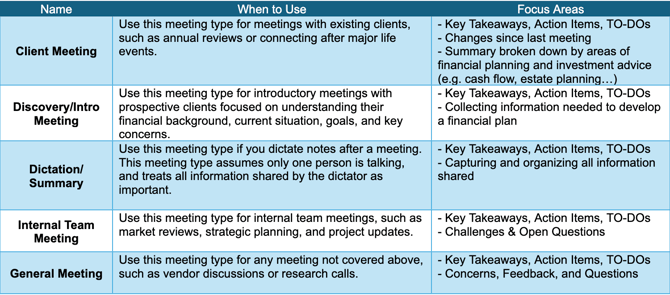
How to Select the Best Meeting Type
- Once a meeting is complete, navigate to the “Meeting Assistant” tab. Select the "Past Meetings" tab, then click “View” next to the meeting to update.
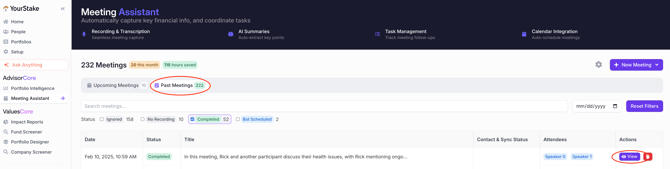
- Next to Meeting Type located at the top, select the drop-down menu and choose which type of meeting is the best fit based on the description in the table above.

- The reprocessing time will take approximately 3-7 minutes to load.
- The user can choose to reprocess the Meeting Type as many times as needed.
Set a Default Meeting Type
- Starting from the home page, select the “Meeting Assistant” tab to the left.
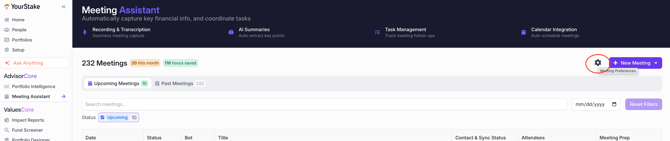
- Select the gear icon located in the top right.
- Underneath the “Default Meeting Type”, select the dropdown and choose which Meeting Type the user wants to start every meeting with.
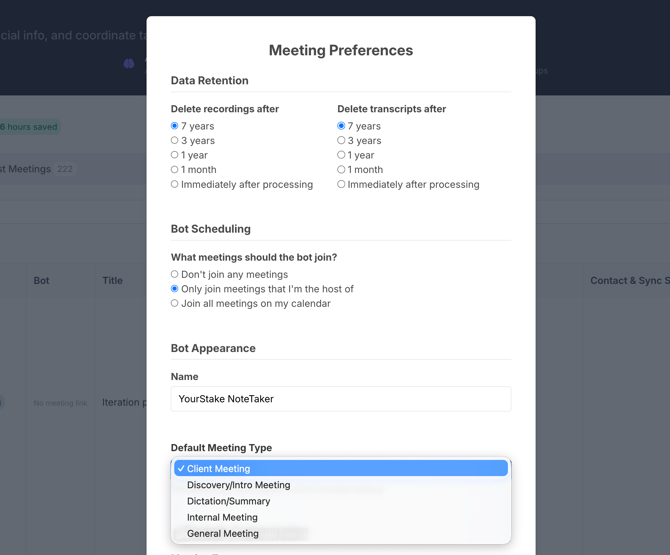
- Select the purple “Save Preferences” button below.
- Click anywhere outside of the Meeting Preferences box to return to normal use.